Using Tables
There may come a time when you consider using a table on a page. Since tables do not display well on small mobile devices, please limit their use unless it's absolutely necessary.
Tables are best used for organizing and displaying tabular data like schedules or price lists, not for page layout.
Making tables accessible and user-friendly is a requirement and includes adding captions and summaries, using header rows, and considering table alternatives. Larger tables must include a special styling class that allows users on small devices to scroll horizontally (learn how).
How to add a table
- Place your cursor wherever you wish to place the table. Click the Table dropdown in the wysiwyg menu.
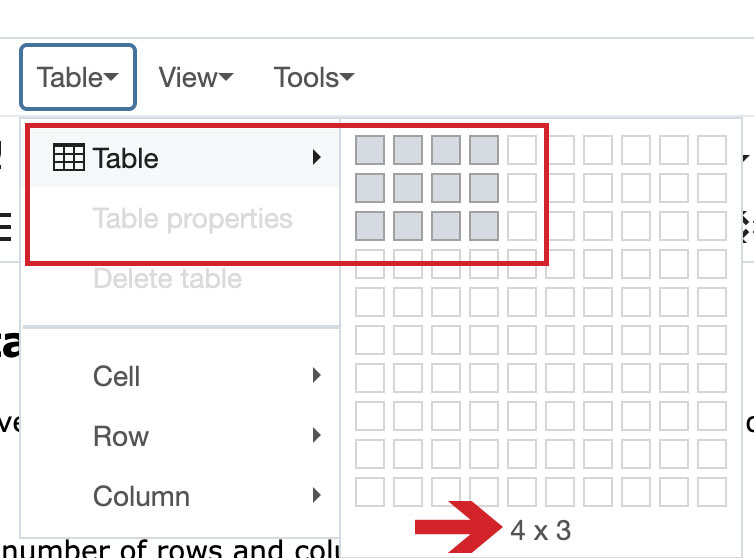
- Next, select the desired number of rows and columns by moving your mouse over the grid.
-
Add your content to the blank table cells.
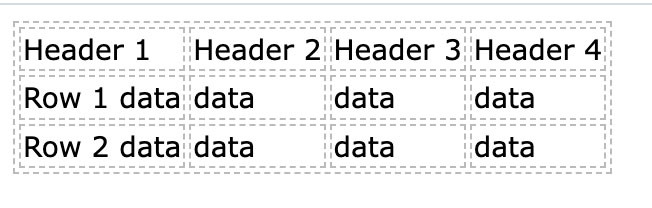
Formatting Tables
Create Row Headings
Tables need to have identifiable row headings.
- To add a header row to your table, highlight the header row, right-click on the table and go to Row, then Row Properties.
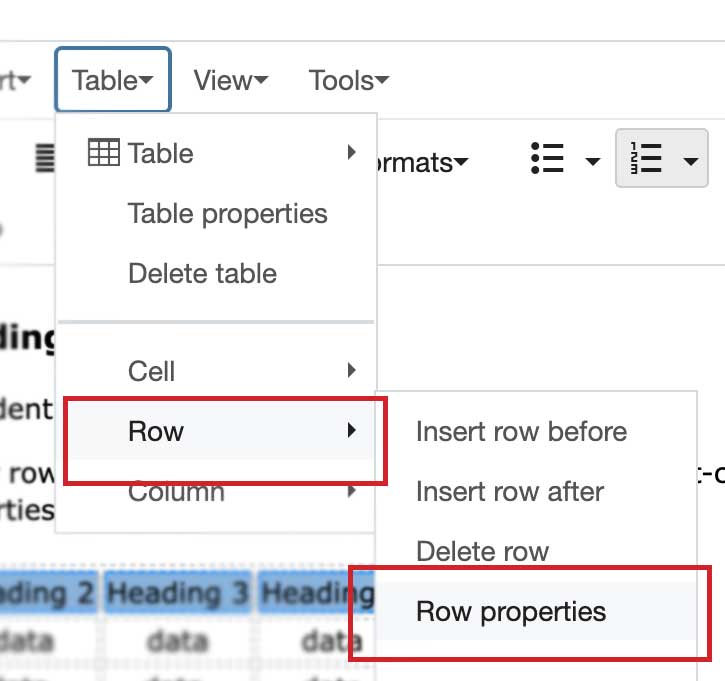
- Select Header from the Row Type drop-down
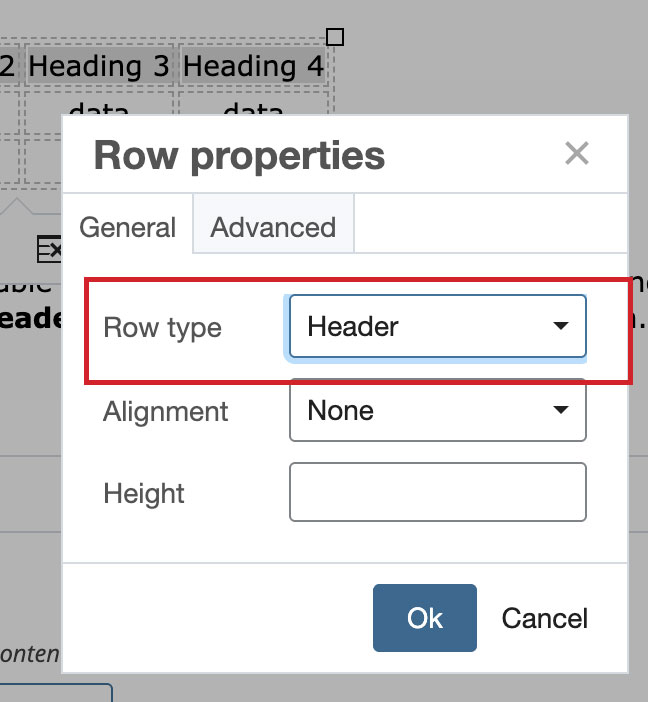
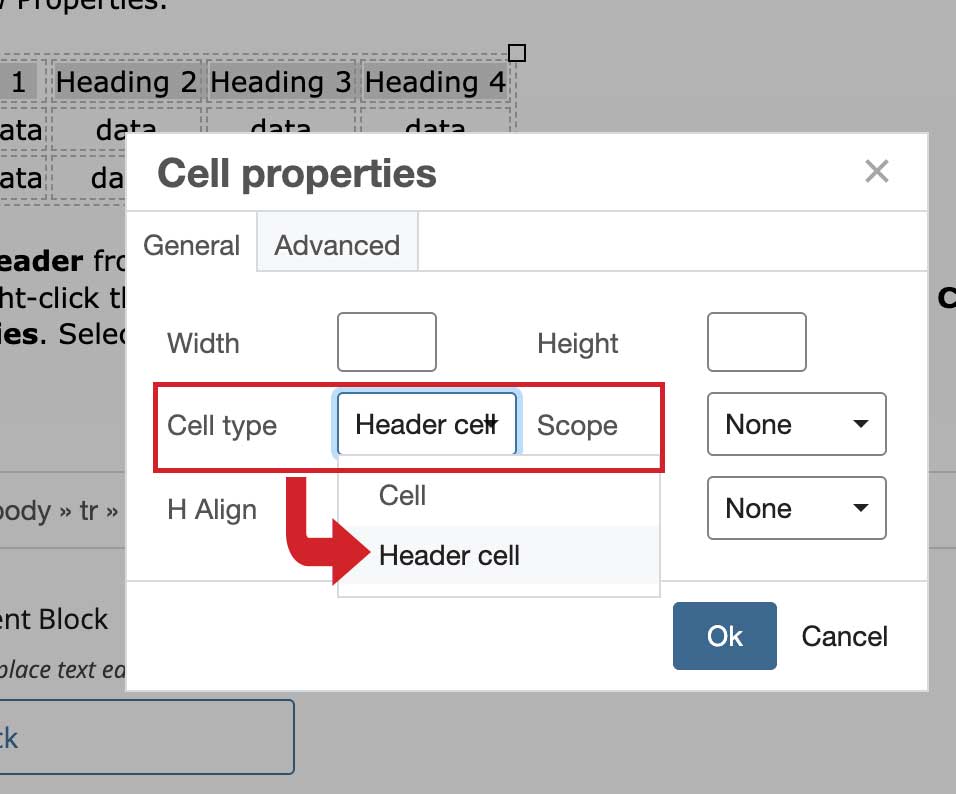
- Next, right-click the table again with header row still highlighted and go to Cell, then Cell Properties. Select Header Cell option from Cell Type drop down.
Add a caption to your table
- Click anywhere in the table to select it.
- In the menu bar that appears, click the Table properties icon.
- Under the General tab, select the Caption checkbox.
- Click Ok. At this point, a caption area will appear above the first table row.
- Place your cursor in the caption area and enter the text for your caption.
Make your table scrollable on mobile devices
There are styling tricks that can help make larger tables horizontally scrollable when using small mobile devices like phones or tablets.
It's important to test your page on small devices to make sure your entire table is viewable. If not, here are steps to take:
- Click to place your cursor on the left edge of the table so rows and columns are highlighted.
- Go to Formats and choose Blocks
- Click on Div
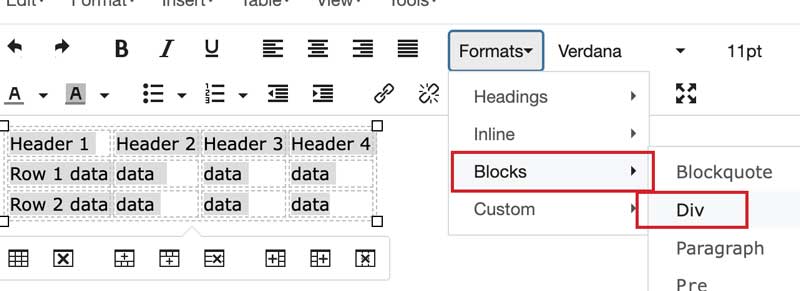
- Immediately go back to Formats and choose Custom
I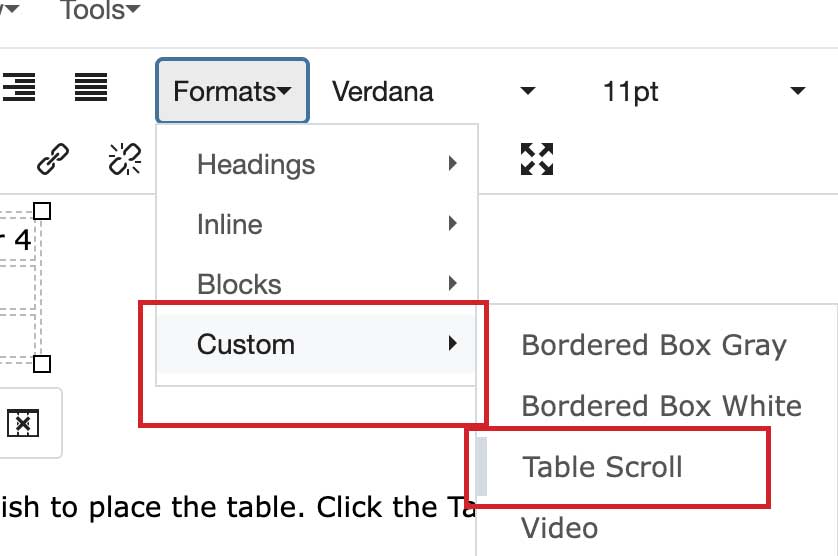
- Click on Table Scroll
- Size your browser to test your table, making sure the visitor can scroll horizontally.